
Web Design Automation

The eVolution Of Website Design, The Future Of An Industry.

The automated creation of dynamic websites that include fully functional data driven structures and presentation services.

Support

QR code of this page
by Web Design Automation

The first hour on a new SoNET website: ten things to set


The Web Design Automation app icon: an orange speedometer gauge above the letters WDA on blackA SoNET website works the moment it is generated. These are the settings that turn a working site into your site, in the order we do them when we take one over.

1. Write the header title and subtitle

Open edit mode on the home page and use the pencil on the header. The title is more than a heading: it also feeds the title that shows when the site is shared, the organization details that search engines read, and the site's llms.txt summary for AI assistants. Use your real business name.

2. Set the search description and keywords

In the SEO section, write one plain sentence about what you do and where. Keep it under 160 characters, or search results will cut it off. Add a handful of keywords people actually type, not every word you can think of.

3. Give the app a name and an icon

Every SoNET site can be installed as an app, so it needs an app name and an icon. In the Progressive Web App settings, choose the icon file first and then press the upload button. Make the picture square, at least 512 pixels, and keep the important part inside the middle 80%: phones crop the corners into a circle or rounded square.

4. Tick "Show in menu" when you add a page

When you create a page, tick the menu box straight away. A page that starts outside the menu gets the generic name "Custom" in its title, and you can hide a menu page later much more easily than you can name one that never had a menu entry.

5. Write the thank-you message on every form

Each form has a confirmation text: what visitors read after they press Send. Write one that says what happens next, such as "Thanks, we will call you back within one business day." Then send yourself a test from a private browser window, while signed out, and check it arrives under Forms, Results.

6. Describe every picture

Give each picture alt text that says what it shows: "Washers and dryers on display in our showroom" helps a blind visitor and a search engine; "image1" helps no one. It takes seconds per picture and it is one of the first things an accessibility check looks for.

7. Choose the look, then check the contrast

The Template Kit changes colors, fonts and effects for the whole site at once. After any color change, read your pages on a phone outdoors or run a contrast checker: pale grey text and white text on a bright button are the usual problems. Readers will not tell you a page is hard to read; they just leave.

8. Look at every page on a phone

Most of your visitors are on phones. Scroll each page on a real one, open the menu, press the buttons, and make sure nothing runs off the side of the screen.

9. Put the answers in the menu

The Concierge, the site's AI guide for visitors, answers from your public pages that are in the menu. If you want it to answer a question about prices, opening times or delivery, make sure that answer is on a menu page in plain words.

10. Measure the speed once, and keep the result

Test the home page at pagespeed.web.dev and note the date and the scores. When something changes later, you will have a real number to compare with instead of a feeling. Our post How fast is fast? explains what to look at.

That is the first hour. After it, the best thing you can do for your site is keep it true: change the opening times when they change, take down offers that have ended, and answer the questions customers really ask.
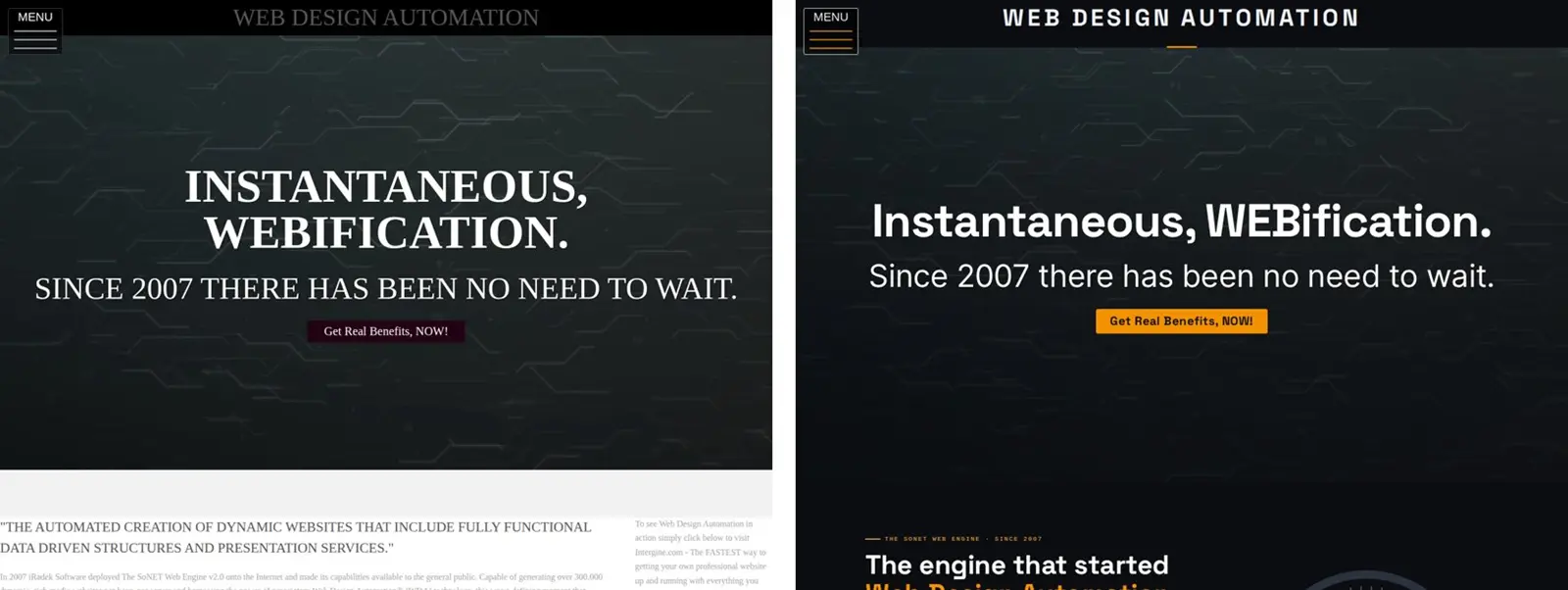

by Web Design Automation

Restyling a website without losing a word


The top of this home page before the redesign, left, and after it, right, on 28 October 2026

Much of this website still described the engine as it was in 2007 and 2020. In October 2026 it got a new look and new pages. This is how we did it without losing a word, a link or a customer's quote along the way.

Start with a copy of everything

Before changing anything, we saved every public page as visitors see it: 19 pages, from the home page to each picture in the case study gallery. We also saved the Template Kit's settings, so the old look could come back with one command. A redesign you cannot undo is a gamble, and this one did not need to be.

Change the look in one place

The new look, iRadek's black and gauge orange with the Space Grotesk and Inter typefaces, lives in the Template Kit: its colors, its fonts, and one block of custom CSS. Because the whole site reads from there, every page changed at once, including pages we did not rewrite, such as Consumer Reviews and Support. Nothing had to be copied into each page.

One snag: this template has no setting for a separate heading font. The font files are on the server anyway, so the CSS declares them and uses them. That is the kind of thing the Template Kit's custom CSS box is for.

Rewrite only what was out of date

Four pages were rewritten: the home page, Speed, Functionality and Security. The rest kept their words. Some of the old content had aged: a 2020 price table compared against competitors' prices that have changed since, and some measurements were six years old. We kept the 2020 measurements, labelled with their dates, as the historical record, and added new ones taken on the day.

Customers' reviews were left exactly as they wrote them, typing slips included. A quote you tidy up is no longer their quote.

Check every page with the old copy

After saving, every page was compared word by word with the copy taken at the start. Only the four rewritten pages and a handful of deliberate typo fixes showed a difference. Nothing went missing by accident.

Read it the way visitors will

Then every page was checked as a visitor, on a computer and on a phone-sized screen:

  • Contrast. An automatic check found the old template's pale grey text reading at about 2.3 to 1 against its background, well under the 4.5 to 1 that text needs. It was darkened everywhere.
  • Phones. On a narrow screen the site title ran underneath the menu button, and the page bands stopped short of the screen edges. Both were fixed and checked again.
  • Links and pictures. Every link was followed, and the pictures in our own content that had no description were given one that says what they show.

What we would tell anyone redesigning a site

  1. Copy everything first, and know how you would undo the change before you make it.
  2. Put the look in one place, not in every page.
  3. Rewrite what is wrong or out of date, date what is historical, and leave what is still true alone.
  4. Check by measuring, not by glancing: words against the old copy, contrast with a checker, the layout on a real phone.

The whole job was done through the SoNET Web Engine's own admin screens, the same ones every site owner has.

by webmaster

How-To Reduce The Cost of Being A Modern Webmaster?


Business

Time Waits For No Webmaster


There are only so many hours in the day.